
Enable finger or face recognition for login
Get started on Android
[content_band]
[column type=”one-third”]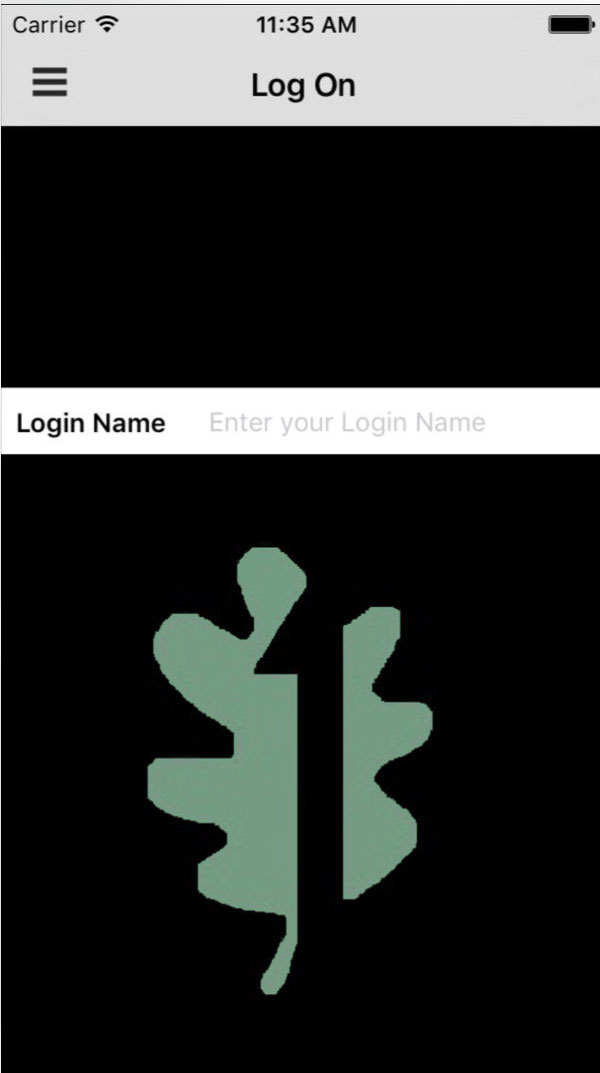
[/column]
[column type=”two-thirds” last=”true”]
First: Login
Using your normal username and password, login to the FirstOak Mobile App
[/column]
[/content_band]
[content_band]
[column type=”one-third”]
[/column]
[column type=”two-thirds” last=”true”]
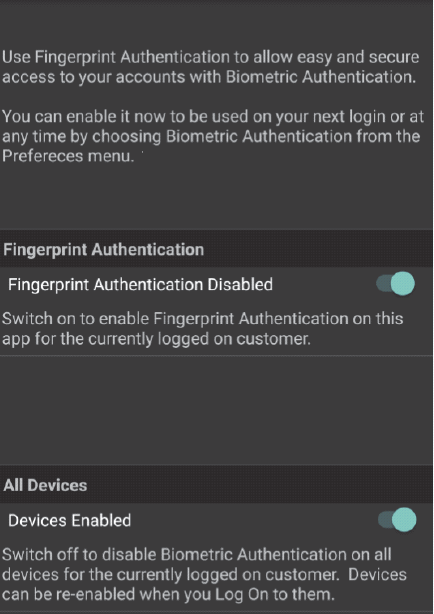
Second – Choose Bio Authentication
Enable Bio Authentication – this will give you the option to enabled fingerprint and face recognition
[/column]
[/content_band]
[content_band]
[column type=”one-third”]
[/column]
[column type=”two-thirds” last=”true”]
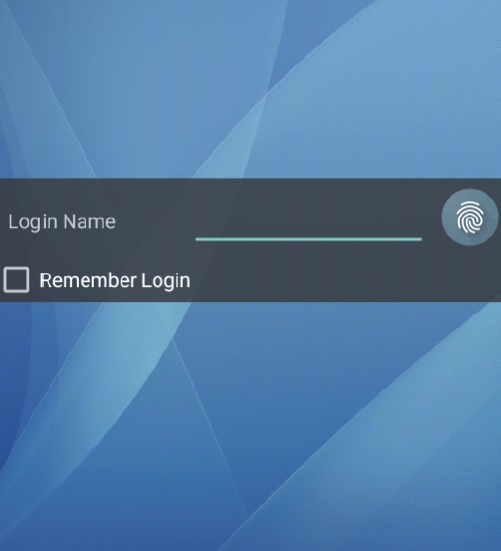
Third – logout then log back in
After setting up the Bio authentication, logout of the FirstOak app and then log back in to allow your app to refresh itself. Click on the finger print icon and then use your finger print to directly log into mobile banking.
[/column]
[/content_band]
Get started on iPhone
[content_band]
[column type=”one-third”]
[/column]
[column type=”two-thirds” last=”true”]
First: Login
Using your normal username and password, login to the FirstOak Mobile App
[/column]
[/content_band]
[content_band]
[column type=”one-third”]
[/column]
[column type=”two-thirds” last=”true”]
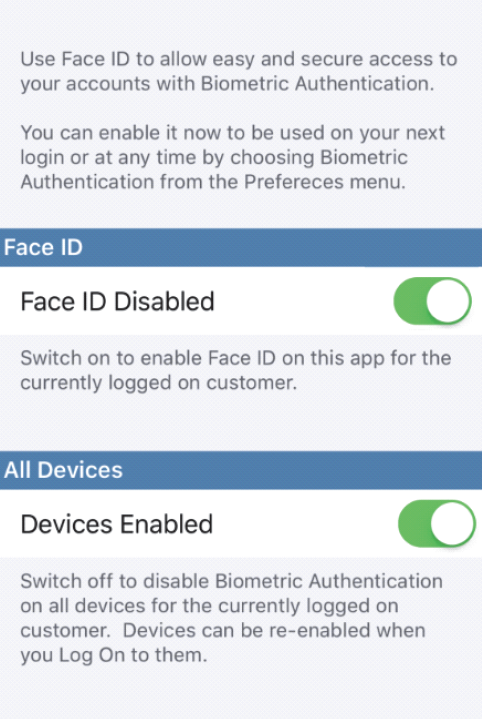
Second – Choose Bio Authentication
Enable Bio Authentication – this will give you the option to enabled fingerprint and face recognition
[/column]
[/content_band]
[content_band]
[column type=”one-third”]
[/column]
[column type=”two-thirds” last=”true”]
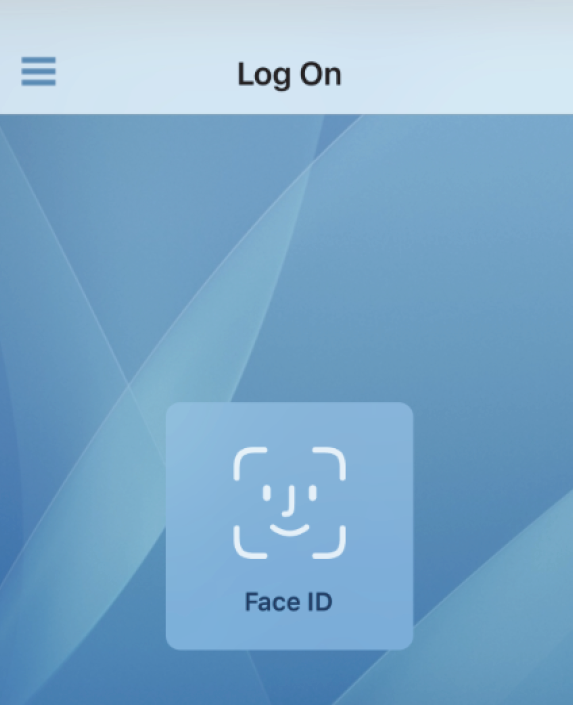
Third – logout then log back in
After setting up the Bio authentication, logout of the FirstOak app and then log back in to allow your app to refresh itself. Click on the finger print icon and then use your finger print to directly log into mobile banking.
[/column]
[/content_band]
Register for mobile banking
To access your accounts using one of our mobile apps, you must be registered for internet banking.